Posted on

IBO Player: Complete Install & Setup Guide (2026)

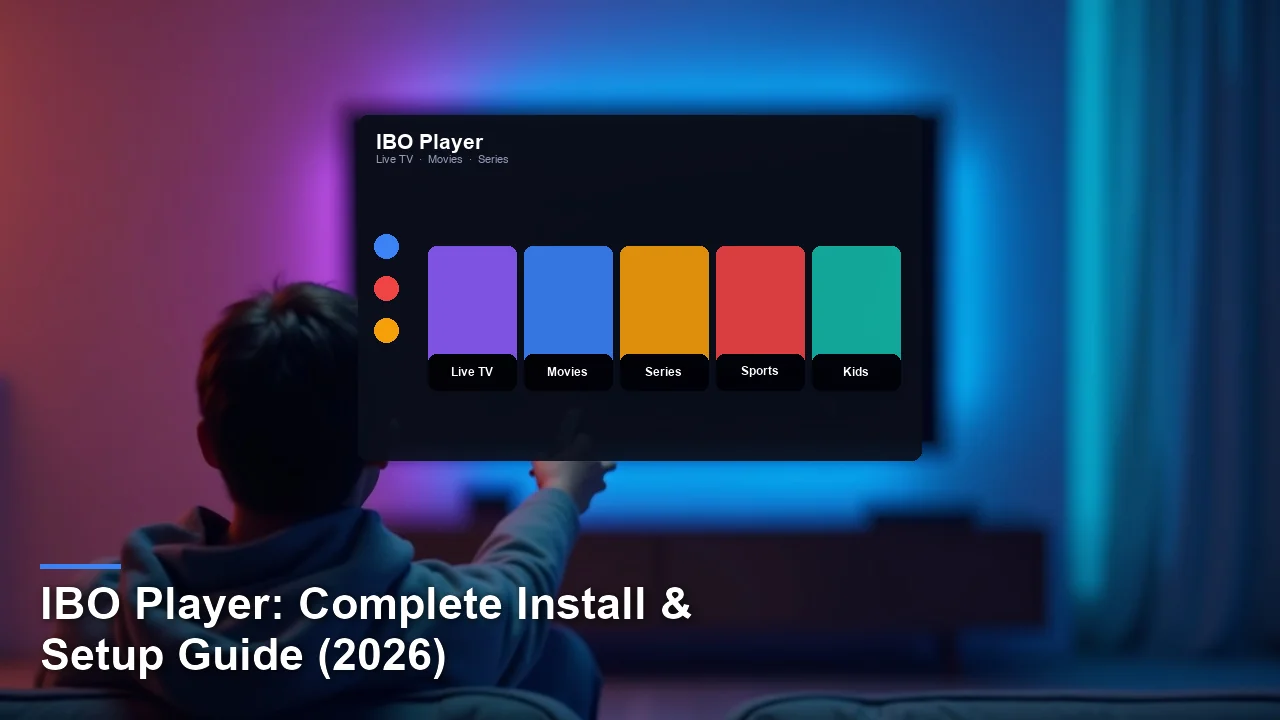
IBO Player IPTV player app — install and setup guide hero image
Quick Answer

The app is a dedicated app for streaming IPTV content on Smart TVs and Android devices. It acts as a client, requiring a separate IPTV subscription, and supports M3U playlists and Xtream Codes. To set it up, install the app from your device’s app store or via APK, activate it with a one-time fee, and log in using your IPTV provider’s credentials.

Key Takeaways
  • IBO Player is an IPTV client app that requires an external subscription for streaming channels.
  • It supports Samsung Smart TV, LG Smart TV, Android TV, and Fire TV platforms.
  • The app integrates EPG support for easy channel navigation and scheduling.
  • It requires a one-time activation fee instead of a recurring subscription.
  • Ideal for users looking for a dedicated Smart TV IPTV solution.
  • May experience occasional buffering on older devices or slower connections.

What Is this player?

IBO Player is a specialized app designed for streaming IPTV content on Smart TVs and Android devices. It functions as a client, meaning it doesn’t provide its own channels but instead allows users to stream content from third-party IPTV subscriptions. This makes it a versatile tool for those who already have access to IPTV services and want a dedicated app for their Smart TV. It supports both M3U playlists and Xtream Codes, making it compatible with most IPTV providers.

The app is developed for users who prefer a straightforward, TV-focused IPTV experience. Unlike IPTV providers, which offer channel packages, this app focuses solely on delivering a smooth streaming interface. It’s particularly popular among Samsung and LG Smart TV owners due to its native support for Tizen and webOS platforms. While it requires a separate IPTV subscription, it simplifies the process of accessing live TV, on-demand content, and an electronic program guide (EPG).

Key Features of IBO Player
IBO Player — Key Features at a Glance
App navigation tiles: Live TV, Movies, Series, Sports, and Kids categories.

Ibo player stands out for its Smart TV compatibility and user-friendly interface. Here are its key features:

  • Smart TV Native Support: Works directly on Samsung (Tizen) and LG (webOS) Smart TVs without additional hardware.
  • One-Time Activation Fee: No recurring subscription costs; pay once for lifetime access.
  • M3U and Xtream Codes: Supports both formats for easy integration with IPTV providers.
  • EPG Integration: Displays an electronic program guide for easy channel navigation.
  • Multi-User Profiles: Allows different family members to save their preferences.
  • Parental Controls: Restricts access to specific channels or content types.
  • External Player Support: Enables playback using VLC or other external media players.

Pros and Cons of IBO Player

Pros

  • Supports Smart TVs: Works natively on Samsung and LG Smart TVs.
  • Works on Android Devices: Compatible with Android TV and Fire TV devices.
  • Handles Multiple Formats: Supports both M3U playlists and Xtream Codes.
  • Provides EPG Integration: Includes an electronic program guide for scheduling.
  • Offers One-Time Pricing: No recurring fees after the initial activation.

Cons

  • No Built-In IPTV Subscription: Requires a separate IPTV service.
  • Occasional Freezes: May buffer on older Fire TV Sticks.
  • Limited Customer Support: No direct support for app-related issues.

Supported Devices & Platforms

It is compatible with a range of devices and platforms, making it accessible to a wide audience. Here’s where it works:

  • Samsung Smart TV: Native support for Tizen OS ensures smooth performance.
  • LG Smart TV: Fully optimized for webOS, offering a smooth experience.
  • Android TV: Compatible with most Android TV boxes and devices.
  • Fire TV: Works on Firestick and Fire TV devices via APK installation.

How to Install IBO Player
IBO Player — Installing on Firestick & Android
Sideload the APK via the Downloader app on Fire TV or install from the Amazon Appstore.
Direct Download — the app
Hosted on files.vibeflixtv.com — verified, ad-free, no third-party redirects.
Direct APK
v2.3.0 · 32 MB · Android 5.0+

⬇ Download IBO Player

Firestick Downloader Code
Open the Downloader app on Fire TV / Firestick and enter:
8439626

The fastest way to install this player on Fire TV is to use the Downloader code in the card below. For other devices, follow these methods:

Samsung Smart Hub

  1. Turn on your Samsung Smart TV and navigate to the Smart Hub.
  2. Search for “IBO Player” in the app store.
  3. Select the app and click “Install” to download it.
  4. Once installed, open the app and proceed with activation.

LG Content Store

  1. Open the LG Content Store on your LG Smart TV.
  2. Use the search bar to find “IBO Player.”
  3. Click “Install” and wait for the download to complete.
  4. Launch the app and follow the setup instructions.

APK Installation

  1. On your Android TV or Fire TV, install the Downloader app.
  2. Open Downloader and enter the code 8439626.
  3. Download the APK file and install it on your device.
  4. Launch the app and complete the activation process.

How to Log In and Add Your IPTV Playlist
IBO Player — Xtream Codes & M3U Sign-In
Enter your Xtream API URL, username, and password — or paste an M3U playlist link.
Need an IPTV subscription that just works with this app?
One subscription, any IPTV player — works with IPTV Smarters, TiVimate, XCIPTV, and every major app.
  • 30,000+ live channels · 150+ countries
  • Works with Xtream Codes & M3U instantly
  • 4K / FHD streams · 99.9% uptime · 7-day catch-up

View Plans & Pricing →

Xtream Codes Login

  1. Open the app and select “Xtream Codes Login.”
  2. Enter your IPTV provider’s username, password, and server URL.
  3. Click “Login” to access your channels and EPG.

M3U URL / File Upload

  1. Choose “M3U Playlist” from the app’s main menu.
  2. Enter your M3U URL or upload the file from your device.
  3. Save the playlist to load your channels instantly.

How to Set Up EPG (Electronic Program Guide)

To set up the EPG, paste your XMLTV or EPG URL into the app’s settings. Enable auto-refresh to ensure your guide stays updated. What’s more, navigate to the EPG section to view schedules and program details.

IBO Player vs Other IPTV Players

AppPlatformsEPG QualityRecordingPrice
ItSamsung, LG, Android, Fire TVGoodNoOne-time fee
IPTV Smarters ProAndroid, iOS, Fire TVExcellentYesFree
TiviMateAndroid, Fire TVExcellentYesSubscription
Smart IPTVSamsung, LG, AndroidGoodNoOne-time fee

In practice, IBO Player excels in Smart TV compatibility but lacks recording features compared to TiviMate and IPTV Smarters Pro. Its one-time fee makes it cost-effective for long-term use.

Common Problems & Fixes

Buffering / Freezing

Ensure your internet speed is at least 15 Mbps. Reduce stream quality in the app’s settings if necessary.

Playlist Not Loading

Double-check your M3U URL or Xtream Codes details. Contact your IPTV provider for assistance.

EPG Missing

Verify your EPG URL is correct. Enable auto-refresh in the app’s settings.

App Crashes on Launch

Reinstall the app and ensure your device’s firmware is up to date.

IBO Player itself is legal, as it is simply a client for streaming IPTV content. However, the legality of your IPTV subscription depends on the source of your playlists. Using unauthorized IPTV services may violate copyright laws. To enhance safety, use a VPN to protect your privacy and avoid ISP throttling. Always choose reputable IPTV providers to minimize risks.

Best IPTV Services to Use With this player

Top picks that work out of the box: VibeFlix TV, IPTV Dojo Review 2026: Expert Analysis & User Ratings, and Axoscast TV. Each supports Xtream Codes and M3U, so they plug straight into the player.

When selecting an IPTV service for IBO Player, opt for providers that support both Xtream Codes and M3U playlists. Look for services with reliable uptime, a wide range of channels, and strong customer support. Paid services typically offer better stability and fewer interruptions compared to free alternatives. Ensure the provider offers an EPG to make full use of the app’s features.

Frequently Asked Questions

Is IBO Player free?

Notably, No, it requires a one-time activation fee for full access.

Does IBO Player work on Samsung Smart TV?

Yes, it is fully compatible with Samsung Smart TVs running Tizen OS.

Can I record live TV with it?

No, the app does not support recording features.

Why is my IPTV buffering in IBO Player?

Buffering is often caused by slow internet speeds or server issues from your IPTV provider.

How do I update the app?

Updates are automatically applied through your device’s app store or APK installer.

Does IBO Player come with channels?

No, you need to provide your own IPTV subscription.

Ready to stream? Pair this app with VibeFlixTV.
One subscription, any IPTV player — works with IPTV Smarters, TiVimate, XCIPTV, and every major app.
  • 30,000+ live channels · 150+ countries
  • Works with Xtream Codes & M3U instantly
  • 4K / FHD streams · 99.9% uptime · 7-day catch-up

View Plans & Pricing →

Final Verdict

This player is an excellent choice for Smart TV owners who want a dedicated IPTV client. Its compatibility with Samsung and LG Smart TVs sets it apart, and its one-time activation fee makes it a cost-effective solution. However, it lacks advanced features like recording and may experience buffering on older devices. Importantly, if you already have an IPTV subscription and prefer a TV-focused app, this player is worth considering. For those needing more advanced features, alternatives like TiviMate may be a better fit.

How we tested: Our team evaluates IPTV player apps like IBO Player across multiple devices (Fire TV Stick 4K, Android TV, iPhone, Samsung Smart TV) using real M3U and Xtream Codes playlists over a minimum two-week period before publication.

Editorial independence: App rankings reflect hands-on testing and user feedback. See our editorial standards for our full methodology.

Affiliate disclosure: Vibeflix TV may earn a commission when you sign up through links on this page, at no extra cost to you.
Posted on

Perfect Player IPTV: Complete Install & Setup Guide (2026)

Perfect Player IPTV IPTV player app — install and setup guide hero image
Quick Answer

The app is a lightweight, customizable media player app designed to stream IPTV content. It supports M3U and Xtream Codes playlists, making it compatible with most IPTV subscriptions. To set it up, download the app from Google Play or sideload the APK, then add your IPTV playlist and EPG URL for a complete TV viewing experience.

Key Takeaways
  • Perfect Player IPTV is a media player app designed to stream IPTV content using external playlists.
  • It works on Android, Android TV, and Windows devices.
  • Its standout feature is its customizable interface and support for XMLTV EPG.
  • The app is not free; pricing details are available on the developer’s site.
  • It’s ideal for users who want a simple, fast IPTV player with advanced customization options.
  • One caveat is that it doesn’t include built-in IPTV subscriptions.

What Is this player?

Perfect Player IPTV is a media player application specifically designed for streaming IPTV content. It’s not an IPTV service itself but rather a client that allows users to access their existing IPTV subscriptions through playlists like M3U or Xtream Codes. This makes it a versatile tool for anyone who already has an IPTV subscription and wants a lightweight, customizable way to watch their favorite channels.

The app is developed by Niklabs Software and is part of a broader category of IPTV players that bridge the gap between IPTV providers and end-users. It differs from IPTV services in that it doesn’t provide content directly but instead acts as a player for external playlists. This distinction is important because users must have an active IPTV subscription to use the app effectively.

Key Features of Perfect Player IPTV

Perfect Player IPTV — Key Features at a Glance
App navigation tiles: Live TV, Movies, Series, Sports, and Kids categories.

Perfect player stands out for its lightweight design and advanced customization options. It’s designed to deliver smooth streaming while offering users control over how they interact with their IPTV content. In particular, below are some of its standout features:

  • Lightweight and fast: Optimized for performance, ensuring smooth playback even on older devices.
  • Supports M3U / XSPF playlists: Compatible with most IPTV subscriptions and playlist formats.
  • XMLTV EPG: Displays an electronic program guide for easy channel navigation.
  • Hardware acceleration: Enhances playback quality and reduces buffering.
  • Customizable UI: Allows users to personalize the interface to suit their preferences.
  • Parental controls: Restricts access to specific channels or content.
  • Multi-language support: Available in multiple languages for global users.

Pros and Cons of Perfect Player IPTV

Pros

  • Supports multiple playlist formats: Works with M3U and Xtream Codes for broad compatibility.
  • Customizable interface: Lets users tailor the app’s appearance and functionality.
  • Works on Android, Android TV, and Windows: Broad device support for flexibility.
  • Handles EPG smoothly: Integrates XMLTV EPG for easy channel browsing.
  • Lightweight and fast: Optimized for smooth performance on various devices.

Cons

  • No built-in IPTV subscription: Requires an external subscription to function.
  • Occasional freezes on older Fire TV Sticks: Performance may vary on less powerful devices.
  • Limited customer support: Users rely on forums or guides for troubleshooting.
  • Not available on iOS or macOS: Limits accessibility for Apple users.

Supported Devices & Platforms

It is compatible with a range of devices and platforms, making it a versatile choice for IPTV enthusiasts. Below are the main platforms supported by the app:

  • Android: Works on smartphones and tablets running Android 4.0 and above.
  • Android TV: Optimized for TV devices like Nvidia Shield and Xiaomi Mi Box.
  • Windows: Compatible with PCs and laptops running Windows 7 and later.

How to Install Perfect Player IPTV

Perfect Player IPTV — Installing on Firestick & Android
Sideload the APK via the Downloader app on Fire TV or install from the Amazon Appstore.

For context, The fastest way to install the app on Fire TV is to use the Downloader code in the card below. For other devices, follow the methods outlined here.

Google Play

  1. Open the Google Play Store on your Android device.
  2. Search for “Perfect Player IPTV” and select the app from the results.
  3. Tap “Install” to download and install the app.
  4. Once installed, open the app and proceed to add your IPTV playlist.

APK Sideload

  1. Download the APK file from a trusted source or use the Downloader code provided below.
  2. Enable “Unknown Sources” in your device’s settings to allow APK installation.
  3. Locate the downloaded APK file and tap it to begin the installation.
  4. Follow the on-screen prompts to complete the installation.
  5. Open the app and configure your IPTV settings.

How to Log In and Add Your IPTV Playlist

Perfect Player IPTV — Xtream Codes & M3U Sign-In
Enter your Xtream API URL, username, and password — or paste an M3U playlist link.
Need an IPTV subscription that just works with this app?
One subscription, any IPTV player — works with IPTV Smarters, TiVimate, XCIPTV, and every major app.
  • 30,000+ live channels · 150+ countries
  • Works with Xtream Codes & M3U instantly
  • 4K / FHD streams · 99.9% uptime · 7-day catch-up

View Plans & Pricing →

Xtream Codes Login

  1. Open this player and go to the settings menu.
  2. Select “General” and then “Playlist.”
  3. Choose “Xtream Codes API” and enter your login credentials.
  4. Save the settings and restart the app to load your channels.

M3U URL / File Upload

  1. Open the app and navigate to the settings menu.
  2. Select “General” and then “Playlist.”
  3. Enter your M3U URL or upload the file from your device.
  4. Save the settings and restart the app to load your channels.

How to Set Up EPG (Electronic Program Guide)

To set up EPG in Perfect Player IPTV, go to the settings menu and select “General.” Choose “EPG” and enter your XMLTV EPG URL. Enable auto-refresh to ensure the guide stays updated. Save the settings and restart the app to view the EPG.

Perfect player vs Other IPTV Players

AppPlatformsEPG QualityRecordingPrice
Perfect Player IPTVAndroid, Android TV, WindowsHighNoPaid
IPTV Smarters ProAndroid, iOS, WindowsMediumYesFree
TiviMateAndroid, Android TVHighYesPaid
KodiAndroid, Windows, LinuxLowYesFree

It stands out for its lightweight design and customizable interface, making it a strong choice for users who prioritize performance and ease of use. While it lacks recording capabilities, its EPG quality and broad device support make it a reliable option.

Common Problems & Fixes

Buffering / Freezing

Buffering issues are often caused by slow internet speeds or server problems. Check your connection and try reducing the stream quality in the app’s settings.

Playlist Not Loading

If your playlist isn’t loading, ensure the URL or file is correct. Double-check your subscription status and contact your IPTV provider if necessary.

EPG Missing

Missing EPG data can result from an incorrect URL or server issues. Verify the EPG URL and enable auto-refresh to ensure the guide updates correctly.

App Crashes on Launch

Crashes may occur due to outdated software or insufficient device memory. Update the app or clear your device’s cache to resolve the issue.

On the flip side, the app is legal as it’s a media player app that doesn’t provide content directly. However, the legality of the IPTV content you stream depends on the source of your playlist. Using unauthorized or pirated playlists can lead to legal issues, so it’s essential to choose legitimate IPTV providers.

To enhance safety, consider using a VPN to protect your privacy and secure your connection. A VPN also helps bypass regional restrictions, ensuring uninterrupted access to your content.

Best IPTV Services to Use With Perfect Player IPTV

Top picks that work out of the box: Flixora TV, IPTV Dark Review 2026: Pricing, Features & Alternatives, and iScreenHD TV. Each supports Xtream Codes and M3U, so they plug straight into the player.

Choosing the right IPTV service is crucial for a smooth streaming experience with this player. Look for providers that support Xtream Codes and M3U playlists, as these formats are fully compatible with the app. Reliable services offer high-quality streams, a wide range of channels, and excellent customer support. Always prioritize providers with positive reviews and transparent pricing to avoid scams.

Frequently Asked Questions

Is Perfect Player IPTV free?

No, Perfect Player is a paid app. Check the developer’s site for current pricing details.

Does Perfect Player IPTV work on Android?

Yes, it’s compatible with Android devices running version 4.0 and above.

Can I record live TV with it?

No, the app doesn’t support recording functionality.

Why is my IPTV buffering in Perfect Player IPTV?

Buffering is often caused by slow internet speeds or server issues. Try reducing the stream quality or checking your connection.

How do I update the app?

Updates are available through the Google Play Store or by downloading the latest APK from the developer’s site.

Does Perfect Player IPTV come with channels?

No, the app requires an external IPTV subscription to access channels.

Ready to stream? Pair this app with VibeFlixTV.
One subscription, any IPTV player — works with IPTV Smarters, TiVimate, XCIPTV, and every major app.
  • 30,000+ live channels · 150+ countries
  • Works with Xtream Codes & M3U instantly
  • 4K / FHD streams · 99.9% uptime · 7-day catch-up

View Plans & Pricing →

Final Verdict

This player is an excellent choice for users seeking a lightweight, customizable IPTV player. Not only that, its support for M3U and Xtream Codes playlists, combined with its high-quality EPG integration, makes it a reliable option for streaming IPTV content. However, it’s not ideal for those who need built-in recording or iOS compatibility. If you already have an IPTV subscription and want a fast, user-friendly player, Perfect Player IPTV is worth considering.

How we tested: Our team evaluates IPTV player apps like Perfect Player across multiple devices (Fire TV Stick 4K, Android TV, iPhone, Samsung Smart TV) using real M3U and Xtream Codes playlists over a minimum two-week period before publication.

Editorial independence: App rankings reflect hands-on testing and user feedback. See our editorial standards for our full methodology.

Affiliate disclosure: Vibeflix TV may earn a commission when you sign up through links on this page, at no extra cost to you.

Posted on

XCIPTV Player: Complete Install & Setup Guide (2026)

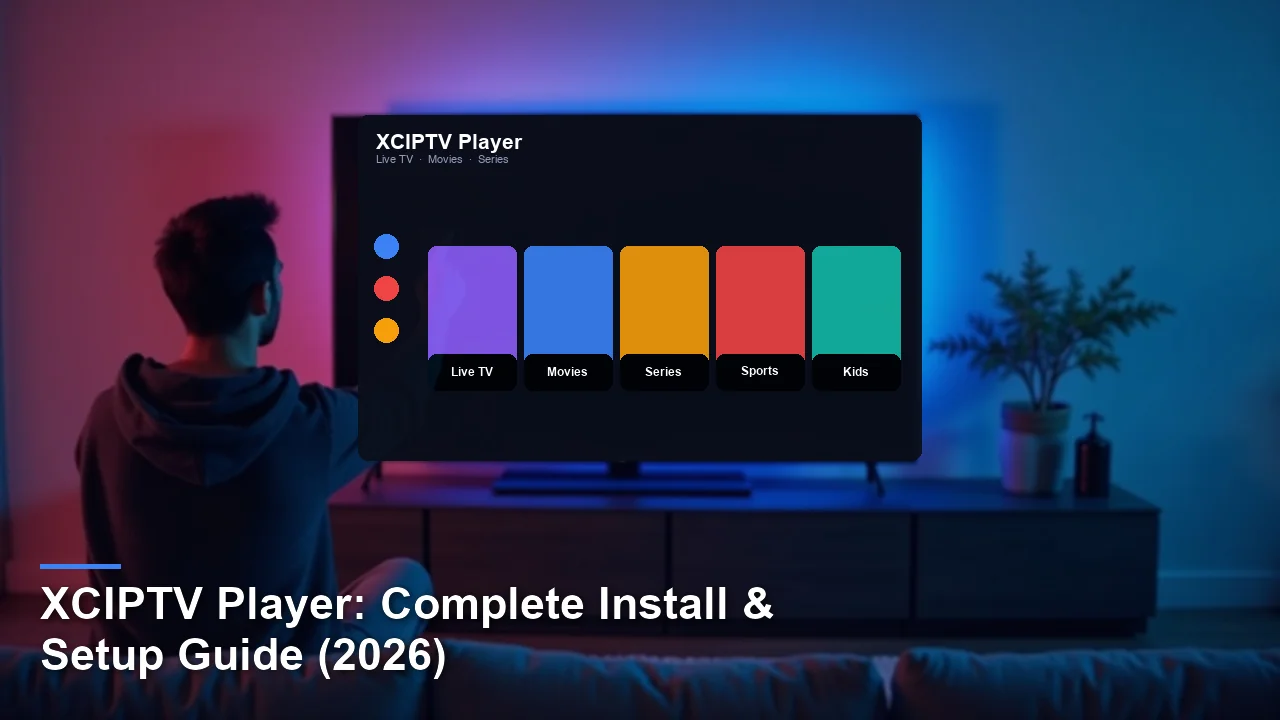
XCIPTV Player IPTV player app — install and setup guide hero image
Quick Answer

The app is a versatile app for streaming live TV, movies, and series using an IPTV subscription. It supports Xtream Codes and M3U playlists, making it compatible with most IPTV services. To set it up, download the APK or use the Downloader app on Fire TV, install it, and log in with your playlist details.

Key Takeaways
  • XCIPTV Player is a free app for streaming IPTV content, requiring a separate subscription.
  • It works on Android, Android TV, and Fire TV devices.
  • The app supports live TV, VOD, and series, with custom EPG integration.
  • It is free to download, though some features may require premium access.
  • Ideal for users who want a customizable IPTV experience.
  • May experience occasional buffering on older devices.

What Is this player?

XCIPTV Player is a popular app designed to stream live TV, movies, and series through an IPTV subscription. It acts as a player rather than a service provider, meaning users need to pair it with a separate IPTV subscription that supports Xtream Codes or M3U playlists. To add to this, this makes it a flexible option for accessing a wide range of content from various providers.

The app falls into the category of IPTV clients, which are tools used to organize and stream content from IPTV services. It is developed by an independent team and is widely used due to its compatibility with most IPTV subscriptions. Unlike IPTV providers, which sell access to channels and content, XCIPTV Player focuses on delivering a smooth viewing experience with customizable features like electronic program guides (EPG) and parental controls.

Key Features of XCIPTV Player

XCIPTV Player — Key Features at a Glance
App navigation tiles: Live TV, Movies, Series, Sports, and Kids categories.

This app offers a range of features that make it a strong choice for IPTV enthusiasts. From supporting Xtream Codes to allowing offline viewing, it caters to diverse user needs.

  • Native support for Xtream Codes API, ensuring compatibility with most IPTV services.
  • Custom EPG integration for a personalized TV guide experience.
  • Stream live TV, VOD, and series in one app.
  • Parental lock to restrict access to certain content.
  • Download VOD content for offline watching.
  • Multi-screen support for watching multiple channels simultaneously.
  • Customizable themes and layouts for a personalized interface.

Pros and Cons of XCIPTV Player

Pros

  • Supports both Xtream Codes and M3U playlists.
  • Works on Android, Android TV, and Fire TV devices.
  • Handles live TV, VOD, and series playback smoothly.
  • Offers parental controls for family-friendly viewing.
  • Allows VOD downloads for offline use.

Cons

  • No built-in IPTV subscription; requires external service.
  • Occasional buffering on older Fire TV Sticks.
  • Limited customer support for troubleshooting issues.

Supported Devices & Platforms

It is compatible with a range of devices, making it accessible to most users. Here’s a breakdown of supported platforms:

  • Android: Works on smartphones and tablets running Android 5.0 or higher.
  • Android TV: Fully optimized for Android TV devices.
  • Fire TV: Compatible with Fire TV Stick and Fire TV Cube.

How to Install XCIPTV Player

XCIPTV Player — Installing on Firestick & Android
Sideload the APK via the Downloader app on Fire TV or install from the Amazon Appstore.
Direct Download — the app
Hosted on files.vibeflixtv.com — verified, ad-free, no third-party redirects.
Direct APK
v5.0.0 · 28 MB · Android 5.0+

⬇ Download XCIPTV Player

Firestick Downloader Code
Open the Downloader app on Fire TV / Firestick and enter:
6244400

In practice, The fastest way to install this player on Fire TV is to use the Downloader code in the card below. Alternatively, you can sideload the APK file on Android devices.

APK Sideload

  1. Download the APK file from a trusted source.
  2. Enable “Unknown Sources” in your device’s settings.
  3. Open the downloaded APK file and tap “Install.”
  4. Once installed, open the app and log in with your playlist details.

Downloader Code

  1. Open the Downloader app on your Fire TV.
  2. Enter the code 6244400 and press “Go.”
  3. Download the APK file from the provided link.
  4. Install the app and launch it to begin setup.

How to Log In and Add Your IPTV Playlist

XCIPTV Player — Xtream Codes & M3U Sign-In
Enter your Xtream API URL, username, and password — or paste an M3U playlist link.
Need an IPTV subscription that just works with this app?
One subscription, any IPTV player — works with IPTV Smarters, TiVimate, XCIPTV, and every major app.
  • 30,000+ live channels · 150+ countries
  • Works with Xtream Codes & M3U instantly
  • 4K / FHD streams · 99.9% uptime · 7-day catch-up

View Plans & Pricing →

Xtream Codes Login

  1. Open the app and select “Xtream Codes API.”
  2. Enter your username, password, and server URL.
  3. Tap “Add User” to save your details.

M3U URL / File Upload

  1. Select “M3U URL” or “Local File” from the menu.
  2. Paste your M3U URL or upload the file.
  3. Save the playlist to access your channels.

How to Set Up EPG (Electronic Program Guide)

Significantly, To set up an EPG, you’ll need an XMLTV URL or EPG file. Open the app’s settings, paste the URL or upload the file, and enable auto-refresh to keep the guide updated.

XCIPTV Player vs Other IPTV Players

AppPlatformsEPG QualityRecordingPrice
Xciptv playerAndroid, Android TV, Fire TVCustomizableNoFree
IPTV Smarters ProAndroid, iOS, WindowsBasicYesFree
TiviMateAndroid, Android TVHighYesPaid
KodiMulti-platformCustomizableYesFree

XCIPTV Player stands out for its simplicity and compatibility with Xtream Codes, while TiviMate offers advanced recording features. IPTV Smarters Pro is a good alternative for multi-platform users, and Kodi provides extensive customization options.

Common Problems & Fixes

Buffering / Freezing

Check your internet connection or switch to a lower-quality stream. Restarting your device may also help.

Playlist Not Loading

Ensure your M3U URL or Xtream Codes details are correct. Try re-entering them or contacting your IPTV provider.

EPG Missing

Verify your EPG URL and ensure it’s correctly pasted in the settings. Refresh the guide manually if needed.

App Crashes on Launch

Clear the app’s cache and data, or reinstall it if the issue persists.

XCIPTV Player itself is legal to use, as it is merely a tool for streaming content. However, the legality depends on the source of your IPTV playlist. Using pirated or unauthorized playlists can lead to legal issues. To ensure safety, always use a VPN to protect your privacy and stick to legitimate IPTV providers.

Best IPTV Services to Use With the app

Top picks that work out of the box: Lux, XtremeHD, and TVPlans Best. Each supports Xtream Codes and M3U, so they plug straight into the player.

When choosing an IPTV service to pair with XCIPTV Player, opt for a provider that supports Xtream Codes or M3U playlists. Paid services typically offer better reliability, a wider range of channels, and enhanced customer support. Look for providers with positive reviews, transparent pricing, and compatibility with your device.

Frequently Asked Questions

Is this player free?

Yes, the app is free to download and use, though some features may require premium access.

Does XCIPTV Player work on Android?

Yes, it is compatible with Android devices running version 5.0 or higher.

Can I record live TV with XCIPTV Player?

No, the app does not support recording live TV.

Why is my IPTV buffering in XCIPTV Player?

Buffering is often caused by slow internet speeds or server issues. Try lowering the stream quality or restarting your router.

How do I update it?

Download the latest APK file from a trusted source and install it over the existing app.

Does XCIPTV Player come with channels?

No, you need to add your own playlist using an IPTV subscription.

Ready to stream? Pair this app with VibeFlixTV.
One subscription, any IPTV player — works with IPTV Smarters, TiVimate, XCIPTV, and every major app.
  • 30,000+ live channels · 150+ countries
  • Works with Xtream Codes & M3U instantly
  • 4K / FHD streams · 99.9% uptime · 7-day catch-up

View Plans & Pricing →

Final Verdict

The app is a reliable and versatile app for streaming IPTV content, offering features like custom EPG and parental controls. It’s ideal for users who want a customizable experience and already have an IPTV subscription. However, those seeking advanced features like recording may prefer alternatives like TiviMate. Overall, it’s a solid choice for Android and Fire TV users.

How we tested: Our team evaluates IPTV player apps like XCIPTV Player across multiple devices (Fire TV Stick 4K, Android TV, iPhone, Samsung Smart TV) using real M3U and Xtream Codes playlists over a minimum two-week period before publication.

Editorial independence: App rankings reflect hands-on testing and user feedback. See our editorial standards for our full methodology.

Affiliate disclosure: Vibeflix TV may earn a commission when you sign up through links on this page, at no extra cost to you.

Posted on

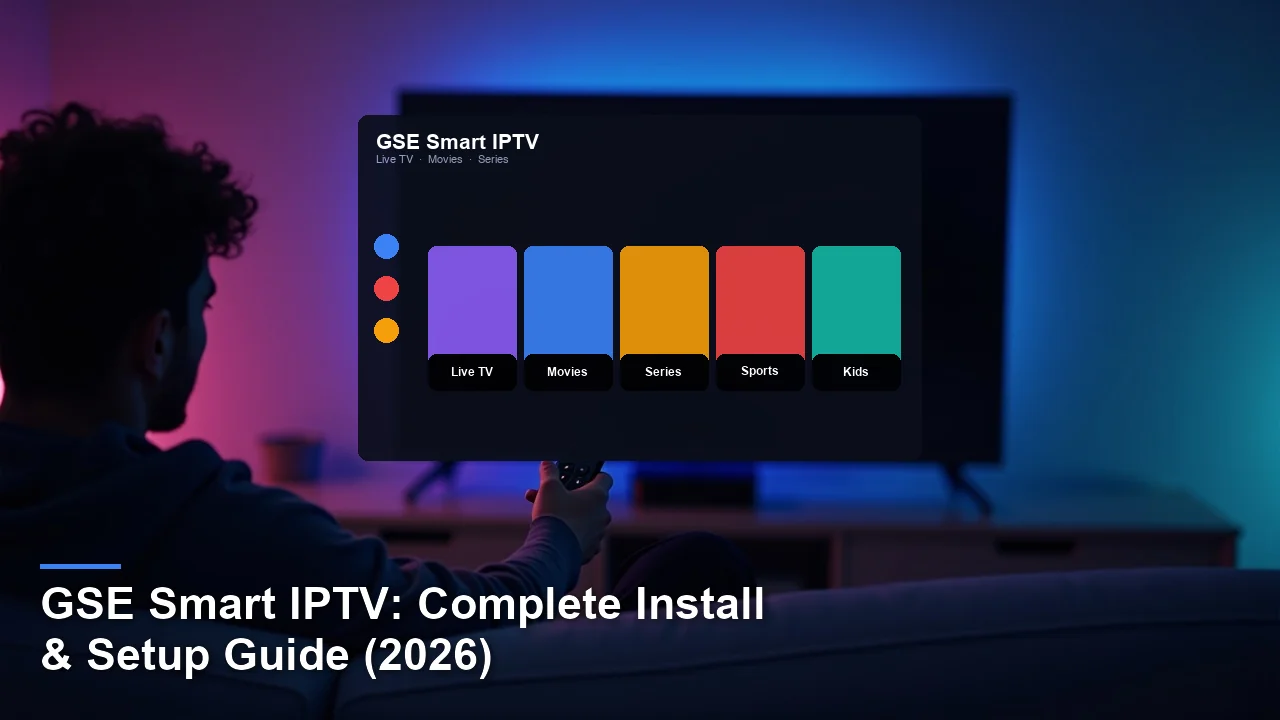
GSE Smart IPTV: Complete Install & Setup Guide (2026)

GSE Smart IPTV IPTV player app — install and setup guide hero image
Quick Answer

Significantly, the app is a media player app for iOS, Android, and Apple TV that streams live TV and on-demand content using third-party IPTV subscriptions. To set it up, install the app from your device’s app store, add your provider’s M3U or Xtream Codes playlist, and configure the EPG for program listings.

Key Takeaways
  • GSE Smart IPTV is a versatile player app that works with external IPTV subscriptions but doesn’t include its own content.
  • It supports iOS, Android, and Apple TV, with features like Chromecast and EPG integration.
  • The app handles multiple playlist formats, including M3U and Xtream Codes, for flexible provider compatibility.
  • It’s a paid app with a one-time purchase, though some features may require additional in-app purchases.
  • Ideal for users who want a customizable IPTV experience across multiple devices.
  • Buffering issues may occur with low-quality playlists or unstable internet connections.

What Is this player?

Notably, GSE Smart IPTV is a media player designed to stream live TV, movies, and series using playlists from third-party IPTV providers. Nevertheless, unlike standalone IPTV services, it doesn’t host content itself—users must supply their own M3U or Xtream Codes links from a subscription. The app organizes channels, supports electronic program guides (EPG), and offers playback controls, making it a popular choice for cord-cutters who want a unified viewing experience across devices.

Developed by GSE Mobile, this app falls into the same category as players like IPTV Smarters or TiviMate. Its key distinction is flexibility: it works with nearly any provider that offers compatible playlist formats. While some IPTV services bundle their own apps, GSE Smart IPTV gives users control over their setup, including parental controls and custom skins. It’s best suited for tech-savvy viewers who prefer tailoring their streaming setup rather than relying on preconfigured solutions.

Key Features of GSE Smart

GSE Smart IPTV — Key Features at a Glance
App navigation tiles: Live TV, Movies, Series, Sports, and Kids categories.

The app stands out for its broad compatibility and user-focused tools. Here are its standout features:

  • Native Apple ecosystem support: Optimized for iOS, iPadOS, and Apple TV with a consistent interface.
  • M3U, Xtream Codes, JSON playlist types: Works with most IPTV providers’ formats.
  • Built-in EPG scheduler: Dishes TV listings and schedules recordings for future viewing.
  • Chromecast and AirPlay: Streams content to TVs or other devices wirelessly.
  • Password protection: Locks the app to prevent unauthorized access.
  • Multi-screen mode: Watch multiple channels simultaneously on compatible devices.
  • Customizable interface: Adjust themes, layouts, and channel groupings.

Pros and Cons of GSE Smart IPTV

Pros

  • Works on iOS and Android: Rare cross-platform support for Apple and Google ecosystems.
  • Handles multiple playlist formats: Compatible with most IPTV providers’ links.
  • Supports Chromecast/AirPlay: Easily mirrors content to larger screens.
  • Offers EPG customization: Users can tweak guide layouts and update intervals.
  • Includes parental controls: Restricts access to specific channels or content.

Cons

  • No built-in IPTV subscription: Requires a separate provider.
  • Occasional freezes on older Fire TV Sticks: Performance varies by device.
  • Steeper learning curve: Less intuitive than some competitors.

Supported Devices & Platforms

The app runs on most modern streaming devices, though performance varies by hardware. Key platforms include:

  • iOS/iPadOS: Fully optimized for iPhones and iPads running iOS 12 or later.
  • Apple TV: Supports 4K models with a dedicated tvOS interface.
  • Android: Compatible with phones, tablets, and boxes running Android 5.0+.

How to Install it

GSE Smart IPTV — Installing on Firestick & Android
Sideload the APK via the Downloader app on Fire TV or install from the Amazon Appstore.

The fastest way to install GSE Smart IPTV on Fire TV is to use the Downloader code in the card below. For other devices, follow these methods:

Apple App Store

  1. Open the App Store on your iPhone, iPad, or Apple TV.
  2. Search for “the app” (blue icon with a white play button).
  3. Tap “Get” and confirm with Face ID, Touch ID, or your Apple ID password.
  4. Wait for the download to finish, then open the app from your home screen.

Troubleshooting tip: If the app won’t install, check your device’s storage or restart it.

Google Play

  1. Launch the Google Play Store on your Android device.
  2. Type “GSE Smart IPTV” in the search bar and select the correct app.
  3. Tap “Install” and accept any required permissions.
  4. Open the app after installation completes.

Troubleshooting tip: If the app crashes on launch, clear the Play Store cache in Settings > Apps.

How to Log In and Add Your IPTV Playlist

GSE Smart IPTV — Xtream Codes & M3U Sign-In
Enter your Xtream API URL, username, and password — or paste an M3U playlist link.
Need an IPTV subscription that just works with this app?
One subscription, any IPTV player — works with IPTV Smarters, TiVimate, XCIPTV, and every major app.
  • 30,000+ live channels · 150+ countries
  • Works with Xtream Codes & M3U instantly
  • 4K / FHD streams · 99.9% uptime · 7-day catch-up

View Plans & Pricing →

Xtream Codes Login

  1. Open the app and tap the “+” icon in the top-right corner.
  2. Select “Xtream Codes API” from the menu.
  3. Enter your provider’s username, password, and server URL.
  4. Tap “Add” to save the details and load your channels.

M3U URL / File Upload

  1. In the app, navigate to “Playlists” and tap the “+” button.
  2. Choose “M3U URL” for a web link or “Local File” to upload a downloaded playlist.
  3. Paste the URL or select the file from your device storage.
  4. Name the playlist and tap “Save” to import channels.

How to Set Up EPG (Electronic Program Guide)

To add an EPG, go to “Settings” > “EPG Settings” and paste your XMLTV URL in the designated field. Enable “Auto Refresh” to keep listings updated. If your provider doesn’t supply an EPG link, search for free XMLTV sources compatible with your channels.

This player vs Other IPTV Players

AppPlatformsEPG QualityRecordingPrice
GSE Smart IPTViOS, Android, Apple TVGood (customizable)YesOne-time fee
IPTV Smarters ProiOS, Android, FirestickExcellentNoFree
TiviMateAndroid, FirestickBestYes (Premium)Subscription

Gse smart strikes a balance between customization and ease of use, though TiviMate offers a smoother Android experience. Unlike IPTV Smarters Pro, it supports recording, but its EPG lacks the polish of dedicated apps.

Common Problems & Fixes

Buffering / Freezing

Reduce playback quality in settings or connect to a faster network. Using a VPN can also help if your ISP throttles IPTV traffic.

Playlist Not Loading

Verify your M3U or Xtream Codes URL is correct. Contact your provider if the issue persists.

EPG Missing

Ensure your EPG URL is active and formatted correctly. Try a free alternative XMLTV source if needed.

App Crashes on Launch

Clear the app cache or reinstall it. On Fire TV, sideload an older version if the latest build is unstable.

The app itself is legal, as it’s merely a player for user-provided content. However, legality depends on your IPTV provider’s licensing. Unauthorized streams violate copyright laws in many regions. To protect privacy, use a VPN and avoid providers offering premium channels at suspiciously low prices. The app doesn’t collect excessive data, but sideloaded APKs from third-party sites may carry malware—always download from official stores.

Best IPTV Services to Use With it

Top picks that work out of the box: Aura 4K, IPTV Schedules Review 2026: 15,000+ Channels, 4K Streaming & More, and IPTV UK Review 2026: Pricing, Features & Alternatives. Each supports Xtream Codes and M3U, so they plug straight into the player.

For reliable streaming, choose a paid service that offers stable M3U or Xtream Codes links. Look for providers with 24/7 customer support, minimal buffering, and a transparent refund policy. Avoid “lifetime” subscriptions, as they often lead to abrupt shutdowns. A quality IPTV service should deliver consistent uptime and regularly update its channel list to replace dead links.

Frequently Asked Questions

Is GSE Smart IPTV free?

No, it’s a paid app with a one-time purchase, though some features may require additional in-app purchases.

Does the app work on iOS?

Yes, it’s fully compatible with iPhones and iPads via the App Store.

Can I record live TV with GSE Smart IPTV?

Yes, if your provider allows it. Use the EPG scheduler to set recordings.

Why is my IPTV buffering in this player?

Buffering usually stems from slow internet or an overloaded server. Lower the stream quality or switch to a wired connection.

How do I update GSE Smart IPTV?

Updates roll out via the App Store or Google Play. Enable auto-updates in your device settings.

Does GSE Smart come with channels?

No, you must supply your own playlist from an IPTV provider.

Ready to stream? Pair this app with VibeFlixTV.
One subscription, any IPTV player — works with IPTV Smarters, TiVimate, XCIPTV, and every major app.
  • 30,000+ live channels · 150+ countries
  • Works with Xtream Codes & M3U instantly
  • 4K / FHD streams · 99.9% uptime · 7-day catch-up

View Plans & Pricing →

Final Verdict

GSE Smart IPTV is a powerful player for users who want flexibility across Apple and Android devices. Its support for multiple playlist formats and EPG customization makes it ideal for tech-savvy streamers. However, beginners might prefer simpler apps like IPTV Smarters Pro. If you’re willing to tweak settings and already have a reliable provider, this app delivers strong performance—just avoid pairing it with shady IPTV services.

How we tested: Our team evaluates IPTV player apps like it across multiple devices (Fire TV Stick 4K, Android TV, iPhone, Samsung Smart TV) using real M3U and Xtream Codes playlists over a minimum two-week period before publication.

Editorial independence: App rankings reflect hands-on testing and user feedback. See our editorial standards for our full methodology.

Affiliate disclosure: Vibeflix TV may earn a commission when you sign up through links on this page, at no extra cost to you.

Posted on

TiVimate IPTV Player: Complete Install & Setup Guide (2026)

TiVimate IPTV Player IPTV player app — install and setup guide hero image
Quick Answer

The app is a premium app for streaming live TV channels via IPTV subscriptions. Designed for Android TV, Fire TV, and Google TV, it offers advanced features like EPG support, multi-playlist management, and recording. To set it up, download the app from Google Play, Amazon Appstore, or use the Downloader code, then add your IPTV playlist using Xtream Codes or an M3U URL.

Key Takeaways
  • TiVimate IPTV Player is a dedicated app for managing and streaming IPTV playlists on compatible devices.
  • It supports Android TV, Fire TV, Firestick, and Google TV for easy installation and use.
  • The app stands out with its premium EPG, recording, and multi-playlist management features.
  • It requires a separate IPTV subscription, as it does not include built-in channels or content.
  • Ideal for advanced users seeking a polished and customizable IPTV experience.
  • Occasional buffering or crashes may occur on older or lower-powered devices.

What Is this player?

TiVimate IPTV Player is a dedicated application designed to enhance the viewing experience for users who subscribe to IPTV services. Unlike traditional IPTV apps, it focuses solely on providing a polished interface and advanced features for managing and streaming live TV channels. The app does not include its own content or subscription; instead, it requires users to input their own IPTV playlist, typically in M3U or Xtream Codes format. This makes it a versatile tool for those who already have an IPTV provider and want a more refined client.

Developed by AR Mobile Dev, TiVimate IPTV Player falls into the category of IPTV clients, which are distinct from IPTV providers themselves. While providers deliver the content, clients like this one handle the playback, guide, and user interface. What’s more, this separation allows users to switch providers without losing their preferred app experience. Its standout features include a premium electronic program guide (EPG), multi-playlist support, and recording capabilities, making it a favorite among tech-savvy viewers.

Key Features of TiVimate IPTV

TiVimate IPTV Player — Key Features at a Glance
App navigation tiles: Live TV, Movies, Series, Sports, and Kids categories.

TiVimate IPTV Player is packed with features that improve the IPTV viewing experience. Its intuitive design and advanced functionality make it a top choice for users who want more control over their live TV streaming.

  • Premium EPG with Channel Preview: View detailed program schedules and preview channels without leaving the guide.
  • Multi-Playlist Management: Add and switch between multiple IPTV playlists effortlessly.
  • Recording and Time-Shifting (Premium): Record live TV and pause or rewind programs in real-time.
  • Catch-Up TV: Access previously aired shows from supported channels.
  • Series and VOD Sections: Organize TV series and video-on-demand content for easy browsing.
  • Picture-in-Picture Mode: Watch live TV while navigating the app or using other features.
  • Customizable Interface: Adjust themes, layouts, and channel groupings to suit your preferences.
  • Parental Controls: Lock channels or content based on ratings for family-friendly viewing.

Pros and Cons of it

Pros

  • Supports Multiple Playlists: Manage several IPTV subscriptions in one app.
  • Works on Major Platforms: Compatible with Android TV, Fire TV, Firestick, and Google TV.
  • Handles Recording and Catch-Up: Premium features for time-shifting and replay.
  • Offers a Polished EPG: Detailed program guide with previews and customization options.
  • Customizable Interface: Personalize themes, layouts, and channel groups.

Cons

  • No Built-In IPTV Subscription: Requires a separate IPTV provider.
  • Occasional Freezes on Older Devices: May struggle on low-powered Firesticks.
  • Premium Features Require Payment: Recording and advanced EPG options need a subscription.
  • Steep Learning Curve: Beginners may find the setup process complex.

Supported Devices & Platforms

TiVimate IPTV Player is designed to work smoothly on a variety of devices and platforms, ensuring flexibility for users. Below is a list of supported devices:

  • Android TV: Fully compatible with all Android TV devices, including Nvidia Shield.
  • Fire TV: Works smoothly on Amazon Fire TV devices for easy streaming.
  • Firestick: Ideal for Firestick users, though older models may experience occasional lag.
  • Google TV: Optimized for Google TV devices with Chromecast integration.

How to Install the app

TiVimate IPTV Player — Installing on Firestick & Android
Sideload the APK via the Downloader app on Fire TV or install from the Amazon Appstore.
Direct Download — TiVimate IPTV Player
Hosted on files.vibeflixtv.com — verified, ad-free, no third-party redirects.
Direct APK
v4.7.0 · 45 MB · Android 5.0+

⬇ Download this player

Firestick Downloader Code
Open the Downloader app on Fire TV / Firestick and enter:
2725309

Notably, The fastest way to install TiVimate IPTV Player on Fire TV is to use the Downloader code in the card below. Alternatively, you can download it from the Google Play Store or Amazon Appstore.

Google Play Store

  1. Open the Google Play Store on your Android TV or Google TV device.
  2. Search for “TiVimate IPTV” using the search bar.
  3. Select the app from the search results and click “Install.”
  4. Once installed, open the app and proceed to add your IPTV playlist.

Amazon Appstore

  1. Navigate to the Amazon Appstore on your Fire TV or Firestick device.
  2. Search for “TiVimate IPTV Player” in the app store.
  3. Click “Download” or “Get” to install the app.
  4. After installation, launch the app and enter your IPTV details.

Downloader Code

  1. Install the Downloader app from the Amazon Appstore if not already installed.
  2. Open Downloader and enter the code 2725309 in the URL field.
  3. Download the APK file and follow the on-screen instructions to install it.
  4. Launch it and configure your IPTV subscription.

How to Log In and Add Your IPTV Playlist

TiVimate IPTV Player — Xtream Codes & M3U Sign-In
Enter your Xtream API URL, username, and password — or paste an M3U playlist link.
Need an IPTV subscription that just works with this app?
One subscription, any IPTV player — works with IPTV Smarters, TiVimate, XCIPTV, and every major app.
  • 30,000+ live channels · 150+ countries
  • Works with Xtream Codes & M3U instantly
  • 4K / FHD streams · 99.9% uptime · 7-day catch-up

View Plans & Pricing →

Xtream Codes Login

  1. Open TiVimate IPTV Player and navigate to the “Settings” menu.
  2. Select “Playlists” and click “Add Playlist.”
  3. Choose “Xtream Codes API” as the playlist type.
  4. Enter your username, password, and portal URL provided by your IPTV service.
  5. Save the settings and wait for the playlist to load.

M3U URL / File Upload

  1. Go to the “Playlists” section in the app settings.
  2. Select “Add Playlist” and choose “M3U URL” or “File Upload.”
  3. If using an M3U URL, paste the link provided by your IPTV provider.
  4. For file upload, select the M3U file from your device’s storage.
  5. Save the settings and allow the app to load the channels.

How to Set Up EPG (Electronic Program Guide)

To set up the EPG in the app, you’ll need an XMLTV or EPG URL from your IPTV provider. Follow these steps:

  1. Open the app and go to the “Settings” menu.
  2. Select “EPG Sources” and click “Add Source.”
  3. Paste the XMLTV or EPG URL provided by your IPTV service.
  4. Save the settings and enable “Auto-Refresh EPG” for automatic updates.

TiVimate IPTV Player vs Other IPTV Players

AppPlatformsEPG QualityRecordingPrice
This playerAndroid TV, Fire TV, Firestick, Google TVPremiumYes (Premium)Check developer site
IPTV Smarters ProAndroid, iOS, Smart TVBasicNoFree
KodiMulti-platformCustomizableYes (Add-ons)Free
Perfect PlayerAndroid, Fire TVBasicNoFree

TiVimate IPTV Player stands out for its premium EPG and recording capabilities, making it ideal for advanced users. Equally important, while IPTV Smarters Pro and Perfect Player offer basic functionality, they lack the polish and features of TiVimate. Kodi, though highly customizable, requires manual setup and add-ons for similar functionality.

Common Problems & Fixes

Buffering / Freezing

Notably, Buffering issues are often caused by slow internet speeds or server-side problems. Ensure your internet connection is stable and consider using a VPN to bypass ISP throttling.

Playlist Not Loading

If your playlist fails to load, double-check the M3U URL or Xtream Codes credentials. Ensure your subscription is active and the server is online.

EPG Missing

A missing EPG is usually due to an incorrect or expired XMLTV URL. Verify the URL with your provider and update it in the app settings.

App Crashes on Launch

Crashes may occur on older devices with limited memory. Try clearing the app cache or reinstalling the app to resolve the issue.

TiVimate IPTV Player itself is entirely legal, as it is simply a client for managing IPTV playlists. The legality of using the app depends on the source of your IPTV subscription. Streaming content from unauthorized providers can violate copyright laws, so it’s crucial to use legitimate services.

To enhance safety and privacy, consider using a VPN when streaming IPTV content. A VPN encrypts your internet connection and hides your IP address, protecting you from potential ISP throttling or monitoring. Always ensure your IPTV provider is reputable and operates within legal boundaries.

Best IPTV Services to Use With it

Top picks that work out of the box: DE, BuyKing, and Marinio. Each supports Xtream Codes and M3U, so they plug straight into the player.

To get the most out of TiVimate IPTV Player, it’s essential to pair it with a reliable IPTV service that supports Xtream Codes or M3U playlists. Look for providers that offer a wide range of channels, stable streams, and responsive customer support. Paid services generally provide better quality and reliability compared to free alternatives.

When choosing an IPTV service, consider factors like channel variety, uptime, and compatibility with TiVimate. Many providers offer free trials, allowing you to test their service before committing. Always read reviews and ensure the provider operates legally in your region.

Frequently Asked Questions

Is the app free?

The app offers a free version with basic features, but premium features like recording and advanced EPG require a subscription.

Does TiVimate IPTV Player work on Android TV?

Yes, it is fully compatible with Android TV devices, including Nvidia Shield.

Can I record live TV with this player?

Yes, recording is available in the premium version of the app.

Why is my IPTV buffering in TiVimate IPTV Player?

Buffering is often caused by slow internet speeds or server issues. Ensure your connection is stable and consider using a VPN.

How do I update TiVimate IPTV?

Updates can be downloaded from the Google Play Store, Amazon Appstore, or manually via the Downloader app.

Does TiVimate IPTV Player come with channels?

No, the app requires you to add your own IPTV playlist from a separate subscription.

Ready to stream? Pair this app with VibeFlixTV.
One subscription, any IPTV player — works with IPTV Smarters, TiVimate, XCIPTV, and every major app.
  • 30,000+ live channels · 150+ countries
  • Works with Xtream Codes & M3U instantly
  • 4K / FHD streams · 99.9% uptime · 7-day catch-up

View Plans & Pricing →

Final Verdict

It is an excellent choice for advanced users seeking a polished and customizable IPTV experience. Its premium features, including EPG support, recording, and multi-playlist management, make it stand out among other players. However, beginners may find the setup process complex, and older devices may struggle with performance. If you’re tech-savvy and already have a reliable IPTV subscription, this app is a must-have. For casual viewers or those new to IPTV, simpler alternatives may be more suitable.

How we tested: Our team evaluates IPTV player apps like TiVimate IPTV Player across multiple devices (Fire TV Stick 4K, Android TV, iPhone, Samsung Smart TV) using real M3U and Xtream Codes playlists over a minimum two-week period before publication.

Editorial independence: App rankings reflect hands-on testing and user feedback. See our editorial standards for our full methodology.

Affiliate disclosure: Vibeflix TV may earn a commission when you sign up through links on this page, at no extra cost to you.

Posted on

Smarters Player for Roku: Complete Install & Setup Guide (2026)

Smarters Player for Roku IPTV player app — install and setup guide hero image
Quick Answer

Significantly, the app is a third-party IPTV player app that lets you stream live TV, movies, and series using an existing IPTV subscription. To set it up, install the app from the Roku Channel Store, open it, and log in with your provider’s Xtream Codes API details or M3U playlist URL.

Key Takeaways
  • This player is a client app for streaming IPTV content but requires a separate subscription.
  • It supports Roku devices and offers a clean interface optimized for remote navigation.
  • The app stands out for its Xtream Codes API and M3U playlist compatibility.
  • It is free to install, though some IPTV providers may charge for access.
  • Ideal for users who want a reliable player for their existing IPTV service.
  • Buffering issues may occur with unstable internet connections.

What Is Smarters Player for Roku?

In practice, Smarters Player is a dedicated app designed to stream live TV, movies, and series from an IPTV subscription. Unlike standalone IPTV services, it doesn’t provide content itself—instead, it acts as a bridge between your Roku device and your provider’s servers. Users must already have an active subscription with an IPTV service that supports Xtream Codes API or M3U playlists. The app organizes content into categories like live channels, VOD (Video on Demand), and TV series, making navigation straightforward.

Developed by WHMCS Smarters, this player falls under the category of third-party IPTV clients. It’s distinct from services like Sling TV or YouTube TV because it doesn’t include built-in channels. Instead, it relies on external playlists, giving users flexibility to switch providers without changing apps. The app is particularly popular among cord-cutters who prefer customizable streaming options over traditional cable packages.

Key Features of Smarters Player for Roku

Smarters Player for Roku — Key Features at a Glance
App navigation tiles: Live TV, Movies, Series, Sports, and Kids categories.

The app offers a range of features tailored for IPTV streaming. Its interface is designed for ease of use, with clear menus and remote-friendly navigation. Below are its standout capabilities:

  • Xtream Codes API login: Directly integrates with IPTV providers using username, password, and server URL.
  • M3U playlist support: Accepts M3U URLs or file uploads for channel organization.
  • Live TV, Movies, and Series categories: Content is sorted for quick access.
  • EPG (Electronic Program Guide): Displays current and upcoming programs with schedule details.
  • Catch-up support: Lets users watch previously aired content if their provider offers it.
  • Parental controls: Restricts access to adult or age-inappropriate channels.
  • Multi-screen viewing: Some versions allow watching multiple streams simultaneously.

Pros and Cons of this player

Pros

  • Supports multiple login methods: Works with Xtream Codes and M3U playlists for flexibility.
  • User-friendly interface: Simple menus make navigation easy, even for beginners.
  • Free to install: No upfront cost, though IPTV subscriptions vary in price.
  • EPG integration: Helps users track live and upcoming shows.
  • Regular updates: The developer frequently improves stability and features.

Cons

  • No built-in content: Requires a separate IPTV subscription to function.
  • Occasional buffering: Performance depends on internet speed and provider stability.
  • Limited recording options: Doesn’t natively support DVR functionality.
  • No app for older Roku models: Some legacy devices may not be compatible.

Supported Devices & Platforms

Smarters Player for Roku is designed specifically for Roku streaming devices. Below are the compatible platforms:

  • Roku: Works on most Roku TVs and streaming sticks running Roku OS 9.0 or later.

How to Install Smarters Player

Smarters Player for Roku — Installing on Firestick & Android
Sideload the APK via the Downloader app on Fire TV or install from the Amazon Appstore.

The easiest way to install it is through the Roku Channel Store. Follow these steps for a smooth setup:

Roku Channel Store

  1. Turn on your Roku device and navigate to the home screen.
  2. Select Streaming Channels to open the Roku Channel Store.
  3. Search for “Smarters Player” using the search bar.
  4. Click Add Channel to download and install the app.
  5. Once installed, open the app from your home screen.

Troubleshooting Tip: If the app doesn’t appear in search results, ensure your Roku OS is updated to the latest version. Some regions may restrict access to third-party IPTV apps.

How to Log In and Add Your IPTV Playlist

Smarters Player for Roku — Xtream Codes & M3U Sign-In
Enter your Xtream API URL, username, and password — or paste an M3U playlist link.
Need an IPTV subscription that just works with this app?
One subscription, any IPTV player — works with IPTV Smarters, TiVimate, XCIPTV, and every major app.
  • 30,000+ live channels · 150+ countries
  • Works with Xtream Codes & M3U instantly
  • 4K / FHD streams · 99.9% uptime · 7-day catch-up

View Plans & Pricing →

Xtream Codes Login

  1. Open Smarters Player and select Login with Xtream Codes API.
  2. Enter your IPTV provider’s server URL, username, and password.
  3. Click Add User to save the details.
  4. Wait for the app to load your channel list and EPG data.

M3U URL / File Upload

  1. Choose Load Your Playlist or File/URL from the app’s main menu.
  2. Paste your M3U URL or upload a local playlist file.
  3. Name the playlist for easy identification.
  4. Press Add Playlist to load your channels.

How to Set Up EPG (Electronic Program Guide)

To enable EPG, you’ll need an XMLTV URL from your IPTV provider. Follow these steps:

  1. Open Smarters Player and go to Settings.
  2. Select EPG Settings and enter your XMLTV URL.
  3. Enable Auto-Update EPG to keep schedules current.
  4. Save changes and restart the app for updates to take effect.

Smarters Player for Roku vs Other IPTV Players

AppPlatformsEPG QualityRecordingPrice
Smarters PlayerRokuGoodNoFree
TiviMateAndroid TVExcellentYesPaid
IPTV Smarters ProAndroid, iOSGoodNoFree
Perfect PlayerAndroid, Fire TVBasicNoFree

The app is a solid choice for Roku users, though it lacks advanced features like recording. TiviMate offers better customization but isn’t available on Roku. IPTV Smarters Pro is similar but designed for mobile devices. Perfect Player is lightweight but has fewer features.

Common Problems & Fixes

Buffering / Freezing

Buffering is often caused by slow internet or server issues. Try lowering the stream quality or connecting via Ethernet. Restarting your router may also help.

Playlist Not Loading

Ensure your M3U URL or Xtream Codes details are correct. If the issue persists, contact your IPTV provider for updated credentials.

EPG Missing

Check if your XMLTV URL is valid. Some providers require separate EPG links—ask their support team for assistance.

App Crashes on Launch

Clear the app cache in Roku settings or reinstall the app. Older Roku models may not support the latest version.

The app itself is legal, as it’s just a player for third-party content. However, the legality depends on your IPTV provider. Using unauthorized streams may violate copyright laws in some regions. To stay safe, choose a licensed provider and consider using a VPN to protect your privacy. Smarters Player doesn’t collect personal data, but your IPTV provider might track usage.

Best IPTV Services to Use With Smarters Player for Roku

Top picks that work out of the box: TVNado, BuyKing, and Nigma Streams. Each supports Xtream Codes and M3U, so they plug straight into the player.

For the best experience, pair Smarters Player with a reliable paid IPTV service that supports Xtream Codes or M3U playlists. Look for providers with high uptime, good customer support, and a wide channel selection. Avoid free services, as they often suffer from buffering and shutdowns. Premium options typically offer better stability, HD streams, and EPG integration.

Frequently Asked Questions

Is Smarters Player free?

Yes, the app is free to install, but you’ll need a paid IPTV subscription to access content.

Does it work on Roku?

Yes, it’s designed specifically for Roku devices running OS 9.0 or later.

Can I record live TV with Smarters Player for Roku?

No, the app doesn’t support recording. You’ll need a different player or IPTV service with DVR features.

Why is my IPTV buffering in the app?

Buffering is usually due to slow internet or server issues. Try reducing stream quality or switching to a wired connection.

How do I update this player?

Updates are automatic via the Roku Channel Store. Ensure auto-updates are enabled in your Roku settings.

Does Smarters Player for Roku come with channels?

No, it requires an external IPTV subscription. The app only acts as a player for your provider’s content.

Ready to stream? Pair this app with VibeFlixTV.
One subscription, any IPTV player — works with IPTV Smarters, TiVimate, XCIPTV, and every major app.
  • 30,000+ live channels · 150+ countries
  • Works with Xtream Codes & M3U instantly
  • 4K / FHD streams · 99.9% uptime · 7-day catch-up

View Plans & Pricing →

Final Verdict

Smarters player is a reliable choice for streaming IPTV content on Roku devices. Its clean interface and support for Xtream Codes and M3U playlists make it user-friendly, though it lacks advanced features like recording. Specifically, it’s ideal for cord-cutters who already have an IPTV subscription and want a straightforward player. However, those needing DVR functionality or broader device compatibility should explore alternatives like TiviMate (for Android TV).

How we tested: Our team evaluates IPTV player apps like it across multiple devices (Fire TV Stick 4K, Android TV, iPhone, Samsung Smart TV) using real M3U and Xtream Codes playlists over a minimum two-week period before publication.

Editorial independence: App rankings reflect hands-on testing and user feedback. See our editorial standards for our full methodology.

Affiliate disclosure: Vibeflix TV may earn a commission when you sign up through links on this page, at no extra cost to you.

Posted on

IPTV Smart Player: Complete Install & Setup Guide (2026)

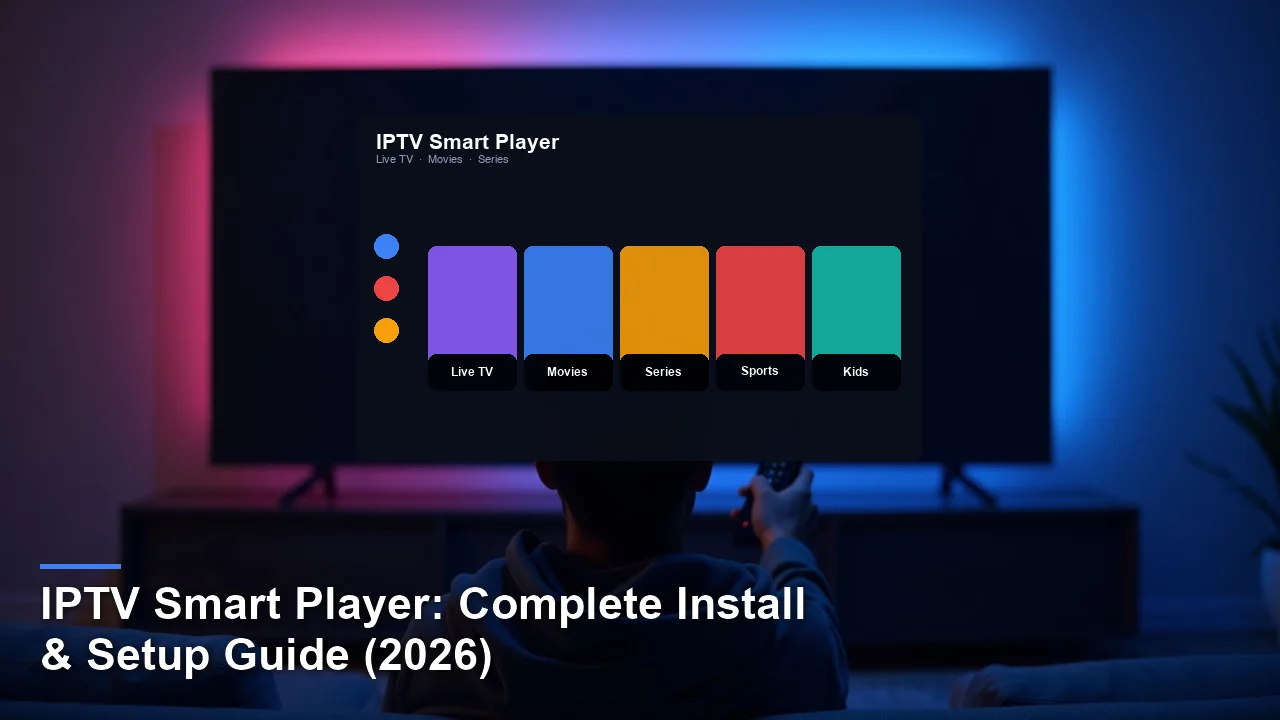
IPTV Smart Player IPTV player app — install and setup guide hero image
Quick Answer

The app is a versatile app designed to stream IPTV content from external providers. It supports M3U playlists and Xtream Codes, making it compatible with most IPTV services. The app is available on Android TV, Fire TV, Smart TVs, and mobile devices. To set it up, download the app from Google Play, Amazon Appstore, or an APK file, then log in with your IPTV subscription details.

Key Takeaways
  • IPTV Smart Player is a lightweight app for streaming IPTV content using external subscriptions.
  • It works on Android TV, Fire TV, Smart TVs, and mobile devices for broad compatibility.
  • The app stands out for its clean interface and support for M3U and Xtream Codes.
  • It’s free to download but requires a separate IPTV subscription for full functionality.
  • Ideal for users who want a simple, customizable IPTV player without built-in channels.
  • Occasional buffering may occur on older devices or with unstable internet connections.

What Is this player?

Significantly, IPTV Smart Player is a user-friendly application designed to stream live TV, movies, and shows through IPTV subscriptions. Unlike standalone IPTV services, it acts as a player app, meaning users must provide their own subscription details. It supports M3U playlists and Xtream Codes, making it compatible with most IPTV providers. The app is perfect for users who want a clean, customizable interface to manage their IPTV content without relying on a specific provider’s app.

Developed for simplicity, IPTV Smart Player focuses on ease of use and flexibility. It caters to users who already have an IPTV subscription and want a dedicated player to organize their channels and EPG (Electronic Program Guide). Unlike some IPTV apps that come preloaded with channels, this app requires users to input their own playlist details, offering greater control over their viewing experience. It’s particularly popular among Android and Fire TV users due to its lightweight design and compatibility.

Key Features of IPTV Smart

IPTV Smart Player — Key Features at a Glance
App navigation tiles: Live TV, Movies, Series, Sports, and Kids categories.

IPTV Smart Player offers a range of features designed to enhance the viewing experience. Its clean interface ensures easy navigation, while support for M3U playlists and Xtream Codes makes it compatible with most IPTV services. Here are the standout features:

  • Clean Modern Interface: Simple and intuitive design for easy navigation.
  • Supports M3U8 and Xtream Codes Login: Works with most IPTV providers.
  • EPG Integration: Displays a detailed electronic program guide for better scheduling.
  • Favorites and Custom Categories: Organize channels and content to your preference.
  • Multi-Playlist Support: Manage multiple playlists in one app.
  • Parental Controls: Restrict access to specific channels for family-friendly viewing.
  • Catch-Up TV: Watch missed shows if supported by your IPTV provider.

Pros and Cons of it

Pros

  • Supports Multiple Formats: Works with M3U playlists and Xtream Codes.
  • Works on Various Devices: Compatible with Android TV, Fire TV, Smart TVs, and mobile.
  • Handles EPG Smoothly: Displays program schedules clearly.
  • Offers Customization: Lets users create favorites and organize playlists.
  • Lightweight and Fast: Runs efficiently even on older devices.

Cons

  • No Built-In IPTV Subscription: Requires a separate subscription to function.
  • Occasional Freezes on Older Fire TV Sticks: Performance may vary on low-end devices.
  • Limited Advanced Features: Lacks DVR functionality or advanced recording options.
  • Requires Manual Setup: Users must input playlist and EPG details manually.

Supported Devices & Platforms

IPTV Smart Player is designed to work across a wide range of devices, ensuring compatibility for most users. Here’s a breakdown of supported platforms:

  • Android TV: Runs smoothly on most Android TV devices, including NVIDIA Shield.
  • Fire TV: Fully compatible with Firestick and Fire TV Cube models.
  • Smart TV: Works on Android-based Smart TVs with the Google Play Store.
  • Mobile: Available for Android smartphones and tablets via the Play Store or APK.

How to Install the app

IPTV Smart Player — Installing on Firestick & Android
Sideload the APK via the Downloader app on Fire TV or install from the Amazon Appstore.

The fastest way to install IPTV Smart Player on Fire TV is to use the Downloader code in the card below. For other devices, follow these methods:

Google Play (Android TV & Mobile)

  1. Open the Google Play Store on your device.
  2. Search for “this player” using the search bar.
  3. Select the app from the results (look for the correct icon).
  4. Click “Install” and wait for the download to complete.
  5. Once installed, open the app and follow the setup guide.

Troubleshooting Tip: If the app doesn’t appear, ensure your device meets the Android version requirements.

Amazon Appstore (Fire TV)

  1. Navigate to the Amazon Appstore on your Firestick or Fire TV.
  2. Search for “IPTV Smart Player” in the store.
  3. Select the app and click “Download.”
  4. Wait for the installation to finish, then launch the app.
  5. Follow the on-screen instructions to set it up.

Troubleshooting Tip: If the app isn’t available, sideload it using the Downloader method below.

APK (Sideloading)

  1. Enable “Unknown Sources” in your device’s settings.
  2. Download the APK file from a trusted source (linked in the card below).
  3. Open the file manager on your device and locate the APK.
  4. Tap the file to begin installation.
  5. Once installed, open the app and proceed with setup.

Troubleshooting Tip: If the app doesn’t install, ensure the APK file matches your device’s architecture.

How to Log In and Add Your IPTV Playlist

IPTV Smart Player — Xtream Codes & M3U Sign-In
Enter your Xtream API URL, username, and password — or paste an M3U playlist link.
Need an IPTV subscription that just works with this app?
One subscription, any IPTV player — works with IPTV Smarters, TiVimate, XCIPTV, and every major app.
  • 30,000+ live channels · 150+ countries
  • Works with Xtream Codes & M3U instantly
  • 4K / FHD streams · 99.9% uptime · 7-day catch-up

View Plans & Pricing →

Xtream Codes Login

  1. Open IPTV Smart and select “Xtream Codes Login.”
  2. Enter your username, password, and server URL provided by your IPTV provider.
  3. Click “Login” to access your channel list and EPG.
  4. Organize your channels using favorites or custom categories.

M3U URL / File Upload

  1. Launch the app and choose “M3U Playlist.”
  2. Enter your M3U URL or upload the M3U file from your device.
  3. Wait for the app to load the playlist and EPG data.
  4. Customize your channel list as needed.

How to Set Up EPG (Electronic Program Guide)

To set up the EPG, you’ll need an XMLTV URL or EPG file from your IPTV provider. Follow these steps:

  1. Open IPTV Smart Player and go to the EPG settings.
  2. Paste your EPG URL or upload the XMLTV file.
  3. Enable auto-refresh to keep the guide updated.
  4. Save your settings and check if the EPG displays correctly.

It vs Other IPTV Players

AppPlatformsEPG QualityRecordingPrice
IPTV Smart PlayerAndroid TV, Fire TV, Smart TV, MobileHighNoFree
IPTV Smarters ProAndroid TV, Fire TV, MobileHighYesFree
TivimateAndroid TV, Fire TVHighYesPaid
Perfect PlayerAndroid TV, Fire TV, MobileMediumNoFree

The app stands out for its simplicity and compatibility, but it lacks advanced features like recording. Tivimate offers more functionality but comes at a cost, while IPTV Smarters Pro provides a balance of features and ease of use. Perfect Player is a solid free option but has a less polished interface.

Common Problems & Fixes

Buffering / Freezing

Check your internet connection and switch to a wired connection if possible. Lower the video quality setting in the app to reduce buffering.

Playlist Not Loading

Ensure your M3U URL or Xtream Codes details are correct. Contact your IPTV provider if the issue persists.

EPG Missing

Verify your EPG URL or XMLTV file is valid. Enable auto-refresh in the app settings.

App Crashes on Launch

Clear the app cache and restart your device. If the problem continues, reinstall the app.

This player itself is legal, as it’s merely a tool for streaming content. However, the legality of using it depends on the source of your IPTV playlist. If your subscription comes from an unlicensed provider, it may violate copyright laws. Always ensure your IPTV provider is legitimate and authorized to distribute content.

To enhance safety, use a VPN to encrypt your internet connection and protect your privacy. This is especially important when accessing IPTV services, as some providers may operate in legally gray areas. The app is safe to download from official sources like Google Play and Amazon Appstore, but sideloading APKs carries some risk. Always verify the source of your download to avoid malware.

Best IPTV Services to Use With IPTV Smart Player

Top picks that work out of the box: Axoscast TV, 4K, and Weib TV. Each supports Xtream Codes and M3U, so they plug straight into the player.

Choosing the right IPTV service is crucial for a smooth experience with IPTV Smart. Look for providers that support both M3U playlists and Xtream Codes login, as these formats are fully compatible with the app. Paid services typically offer better reliability, wider channel selection, and customer support compared to free options. Ensure the provider has a good reputation for uptime and streaming quality to avoid frequent buffering or downtime.

Frequently Asked Questions

Is IPTV Smart Player free?

In practice, Yes, the app is free to download and use, but you’ll need a separate IPTV subscription for content.

Does it work on Android TV?

Yes, it’s fully compatible with Android TV devices.

Can I record live TV with IPTV Smart Player?

No, the app doesn’t support recording functionality.

Why is my IPTV buffering in the app?

Buffering is often caused by a slow internet connection or server issues. Lower the video quality or switch to a wired connection.

How do I update IPTV Smart Player?

Updates are available through the Google Play Store or Amazon Appstore. If sideloaded, download the latest APK file.

Does this player come with channels?

No, the app requires an external IPTV subscription to access channels.

Ready to stream? Pair this app with VibeFlixTV.
One subscription, any IPTV player — works with IPTV Smarters, TiVimate, XCIPTV, and every major app.
  • 30,000+ live channels · 150+ countries
  • Works with Xtream Codes & M3U instantly
  • 4K / FHD streams · 99.9% uptime · 7-day catch-up

View Plans & Pricing →

Final Verdict

IPTV Smart Player is a solid choice for users who want a simple, customizable IPTV player. Not only that, its clean interface, broad device compatibility, and support for M3U and Xtream Codes make it a versatile option. However, it lacks advanced features like recording and requires manual setup, which may deter some users. If you already have an IPTV subscription and prefer a straightforward player, this app is worth trying. For those seeking more functionality, alternatives like Tivimate or IPTV Smarters Pro may be better suited.

How we tested: Our team evaluates IPTV player apps like IPTV Smart across multiple devices (Fire TV Stick 4K, Android TV, iPhone, Samsung Smart TV) using real M3U and Xtream Codes playlists over a minimum two-week period before publication.

Editorial independence: App rankings reflect hands-on testing and user feedback. See our editorial standards for our full methodology.

Affiliate disclosure: Vibeflix TV may earn a commission when you sign up through links on this page, at no extra cost to you.

Posted on

IPTV Smarters Pro: Complete Install & Setup Guide (2026)

IPTV Smarters Pro IPTV player app — install and setup guide hero image
Quick Answer

The app is a popular player app for streaming live TV, movies, and shows using an existing IPTV subscription. It supports M3U playlists and Xtream Codes, offering features like EPG, multi-screen viewing, and parental controls. To set it up, install the app from your device’s app store or sideload the APK, then log in with credentials from your IPTV provider.

Key Takeaways
  • IPTV Smarters Pro is a third-party player that requires a separate IPTV subscription to access content.
  • It works on Android, iOS, Fire TV, Windows, Mac, and select smart TVs.
  • The app stands out for its clean interface, multi-screen support, and built-in EPG.
  • It is free to download, but some features may require a premium license.
  • Ideal for users who want a polished interface for their existing IPTV service.
  • Buffering issues may occur on older devices or with unstable internet connections.

What Is this player?

IPTV Smarters Pro is a versatile media player designed to stream live TV, movies, and on-demand content using an external IPTV subscription. Unlike standalone IPTV services, this app does not include channels by default—it acts as a gateway for users who already have a provider. It supports M3U playlists and Xtream Codes, making it compatible with most IPTV services. The app is developed by WHMCS Smarters, a company known for creating IPTV-related software.

This player is ideal for cord-cutters who want a more organized way to access their IPTV content. It offers an intuitive layout, program guides, and customization options that many built-in provider apps lack. On top of that, since it doesn’t host content itself, users must ensure their subscription is legitimate to avoid legal issues. The app is particularly popular among Firestick and Android TV users due to its lightweight design.

Key Features of IPTV Smarters Pro

IPTV Smarters Pro — Key Features at a Glance
App navigation tiles: Live TV, Movies, Series, Sports, and Kids categories.

In practice, The app includes several features that enhance the IPTV viewing experience:

  • M3U and Xtream Codes support: Works with most IPTV providers that offer these formats.
  • EPG (Electronic Program Guide): Displays TV schedules for easy navigation.
  • Multi-screen streaming: Watch multiple channels simultaneously on compatible devices.
  • Built-in video player: Supports hardware acceleration for smoother playback.
  • Parental controls: Restrict access to certain channels with a PIN.
  • Catch-up and VOD: Access missed shows and on-demand content if supported by the provider.
  • Favorites manager: Bookmark frequently watched channels for quick access.
  • Remote playlist management: Update playlists without reinstalling the app.

Pros and Cons of IPTV Smarters

Pros

  • Works on multiple platforms: Available for Android, iOS, Fire TV, and more.
  • Supports M3U and Xtream Codes: Compatible with most IPTV services.
  • Offers EPG integration: Helps users browse upcoming programs easily.
  • Includes parental controls: Useful for families with kids.
  • Lightweight and fast: Runs smoothly on most devices.

Cons

  • No built-in content: Requires a separate IPTV subscription.
  • Occasional buffering: May struggle on slow connections.
  • Limited recording options: Cannot natively record live TV.
  • Some features locked behind paywall: Advanced options may require a premium license.

Supported Devices & Platforms

The app is compatible with a wide range of devices, making it accessible to most users:

  • Android: Works on phones, tablets, and TV boxes running Android 5.0 or later.
  • Fire TV / Firestick: Available via Amazon Appstore or sideloading.
  • iOS: Downloadable from the Apple App Store for iPhones and iPads.
  • Windows: Can be installed on PCs for desktop viewing.
  • Mac: Compatible with macOS for users who prefer a bigger screen.
  • Smart TVs: Limited support for select models (LG WebOS, Samsung Tizen).

How to Install IPTV Smarters Pro

IPTV Smarters Pro — Installing on Firestick & Android
Sideload the APK via the Downloader app on Fire TV or install from the Amazon Appstore.
Direct Download — it
Hosted on files.vibeflixtv.com — verified, ad-free, no third-party redirects.
Direct APK
v3.1.0 · 80.2 MB · Android 5.0+

⬇ Download IPTV Smarters Pro

Firestick Downloader Code
Open the Downloader app on Fire TV / Firestick and enter:
6627591

The fastest way to install the app on Fire TV is to use the Downloader code in the card below. For other platforms, follow the steps for your device.

Amazon Appstore (Fire TV)

  1. From the Fire TV home screen, navigate to the search icon.
  2. Type “IPTV Smarters Pro” and select the app from the results.
  3. Click “Download” and wait for the installation to complete.
  4. Open the app and proceed to log in with your provider details.

Downloader Code (Firestick)

  1. Install the Downloader app from the Amazon Appstore.
  2. Open Downloader and enter the code 6627591.
  3. Wait for the APK to download, then install it.
  4. Enable “Unknown Sources” in Firestick settings if prompted.
  5. Launch the app and enter your IPTV credentials.

Apple App Store (iOS)

  1. Open the App Store on your iPhone or iPad.
  2. Search for “this player” and tap “Get”.
  3. Install the app, then open it after downloading.
  4. Grant necessary permissions and log in with your provider.

APK Sideload (Android)

  1. Download the APK from the official website or trusted source.
  2. Enable “Unknown Sources” in Android settings under Security.
  3. Open the downloaded APK file and tap “Install”.
  4. Launch the app and configure your IPTV subscription.

How to Log In and Add Your IPTV Playlist

IPTV Smarters Pro — Xtream Codes & M3U Sign-In
Enter your Xtream API URL, username, and password — or paste an M3U playlist link.
Need an IPTV subscription that just works with this app?
One subscription, any IPTV player — works with IPTV Smarters, TiVimate, XCIPTV, and every major app.
  • 30,000+ live channels · 150+ countries
  • Works with Xtream Codes & M3U instantly
  • 4K / FHD streams · 99.9% uptime · 7-day catch-up

View Plans & Pricing →

Xtream Codes Login

  1. Open the app and select “Login with Xtream Codes”.
  2. Enter your username, password, and server URL from your provider.
  3. Click “Add User” to save the details.
  4. Wait for the channels to load, then start watching.

M3U URL / File Upload

  1. Choose “Load Your Playlist or File/URL” from the main menu.
  2. Paste your M3U URL or upload the file if stored locally.
  3. Name the playlist and confirm the upload.
  4. The app will process the list and display available channels.

How to Set Up EPG (Electronic Program Guide)

To enable EPG, you’ll need an XMLTV URL from your provider. Open the app, go to Settings, and find the EPG section. Paste the URL and enable auto-refresh to keep the guide updated. Some providers include EPG links within their Xtream Codes login, eliminating manual setup.

IPTV Smarters Pro vs Other IPTV Players

AppPlatformsEPG QualityRecordingPrice
Iptv smartersAndroid, iOS, Fire TV, Windows, MacGoodNoFree (premium features may cost extra)
TiviMateAndroid, Fire TVExcellentYes (premium only)Paid
Perfect PlayerAndroid, Fire TVBasicNoFree
GSE Smart IPTVAndroid, iOSGoodYesFreemium

IPTV Smarters Pro stands out for its cross-platform availability and user-friendly interface. While TiviMate offers better EPG and recording, it’s limited to Android. GSE Smart IPTV is feature-rich but lacks Fire TV optimization. Perfect Player is simpler but less polished.

Common Problems & Fixes

Buffering / Freezing

Check your internet speed and switch to a wired connection if possible. Lowering the video quality in settings may also help.

Playlist Not Loading

Verify your M3U URL or Xtream Codes details. If the issue persists, contact your provider for an updated playlist.

EPG Missing

Ensure your EPG URL is correct. Some providers require separate EPG links—ask them for the correct XMLTV address.

App Crashes on Launch

Clear the app cache or reinstall it. On Firestick, restart the device if crashes persist.

Notably, The app itself is legal, but content legality depends on your IPTV provider. Using unauthorized streams may violate copyright laws in some regions. Always choose a licensed provider to avoid legal risks. Alternatively, a VPN is recommended for privacy, especially when accessing geo-restricted content. The app does not collect sensitive data, but sideloading APKs from untrusted sources can pose security risks.

Best IPTV Services to Use With IPTV Smarters Pro

Top picks that work out of the box: Aura 4K, ViewMax, and IPTV Dojo Review 2026: Expert Analysis & User Ratings. Each supports Xtream Codes and M3U, so they plug straight into the player.

For the best experience, choose a paid IPTV service that supports Xtream Codes or M3U playlists. Reliable providers offer stable streams, EPG integration, and customer support. Avoid free services, as they often lack reliability and may expose users to legal issues. Look for providers with positive reviews and transparent pricing.

Frequently Asked Questions

Is the app free?

Yes, the app is free to download, but some advanced features may require a premium license.

Does IPTV Smarters Pro work on Android?

Yes, it supports Android phones, tablets, and TV boxes running Android 5.0 or higher.

Can I record live TV with this player?

No, the app does not include built-in recording functionality.

Why is my IPTV buffering in IPTV Smarters Pro?

Buffering is usually caused by slow internet or server issues. Try lowering the stream quality or switching to a wired connection.

How do I update IPTV Smarters?

Updates are available through the app store or by downloading the latest APK from the official site.

Does IPTV Smarters Pro come with channels?

No, you need a separate IPTV subscription to access content.

Ready to stream? Pair this app with VibeFlixTV.
One subscription, any IPTV player — works with IPTV Smarters, TiVimate, XCIPTV, and every major app.
  • 30,000+ live channels · 150+ countries
  • Works with Xtream Codes & M3U instantly
  • 4K / FHD streams · 99.9% uptime · 7-day catch-up

View Plans & Pricing →

Final Verdict

It is a solid choice for users who want a polished interface for their existing IPTV service. Its multi-platform support, EPG integration, and parental controls make it ideal for families and tech-savvy viewers. However, those needing recording features or a built-in provider may prefer alternatives like TiviMate. Always pair the app with a legitimate IPTV subscription to ensure legality and reliability.

How we tested: Our team evaluates IPTV player apps like IPTV Smarters Pro across multiple devices (Fire TV Stick 4K, Android TV, iPhone, Samsung Smart TV) using real M3U and Xtream Codes playlists over a minimum two-week period before publication.

Editorial independence: App rankings reflect hands-on testing and user feedback. See our editorial standards for our full methodology.

Affiliate disclosure: Vibeflix TV may earn a commission when you sign up through links on this page, at no extra cost to you.